Plug in. Stream on.
Stay charged.
One USB cable.
Mirror your Android screen, game audio, and mic to Windows — charged the whole time.
or download the .exe directly (unsigned, see install notes)
Does any of this sound familiar?
- You want to stream Android gameplay on OBS without buying a capture card or Elgato, but screen capture, game audio, and your own mic never quite line up.
- Wi-Fi mirroring is a world of pain: latency spikes and a draining battery.
- Tried
scrcpyon the CLI or DroidCam — but the audio doesn't carry, or the ritual gets old every single session. - Mid-stream, your phone is at 12% and heating up. Sweaty.
ChargeCast solves all four with one USB cable and a friendly GUI. Windows only, streaming-first.
Go live in 3 minutes — Quick demo
The shortest path from "maybe I could stream" to "I'm live."
1Plug in the USB cable
Turn on USB debugging on your Android phone, then plug it into your PC.
Your regular charging cable is fine. Yes — the phone charges while you stream.
First time? Enable USB debugging (2 minutes)
- Open Android Settings → About phone
- Tap Build number 7 times until you see "You are now a developer"
- Go to Settings → System → Developer options and turn on USB debugging
- When you plug the cable in, tap Allow on the permission prompt
Menu paths vary slightly by phone maker (Samsung: Settings → About phone → Software information → tap Build number).
2Pick a preset, hit Start Capture
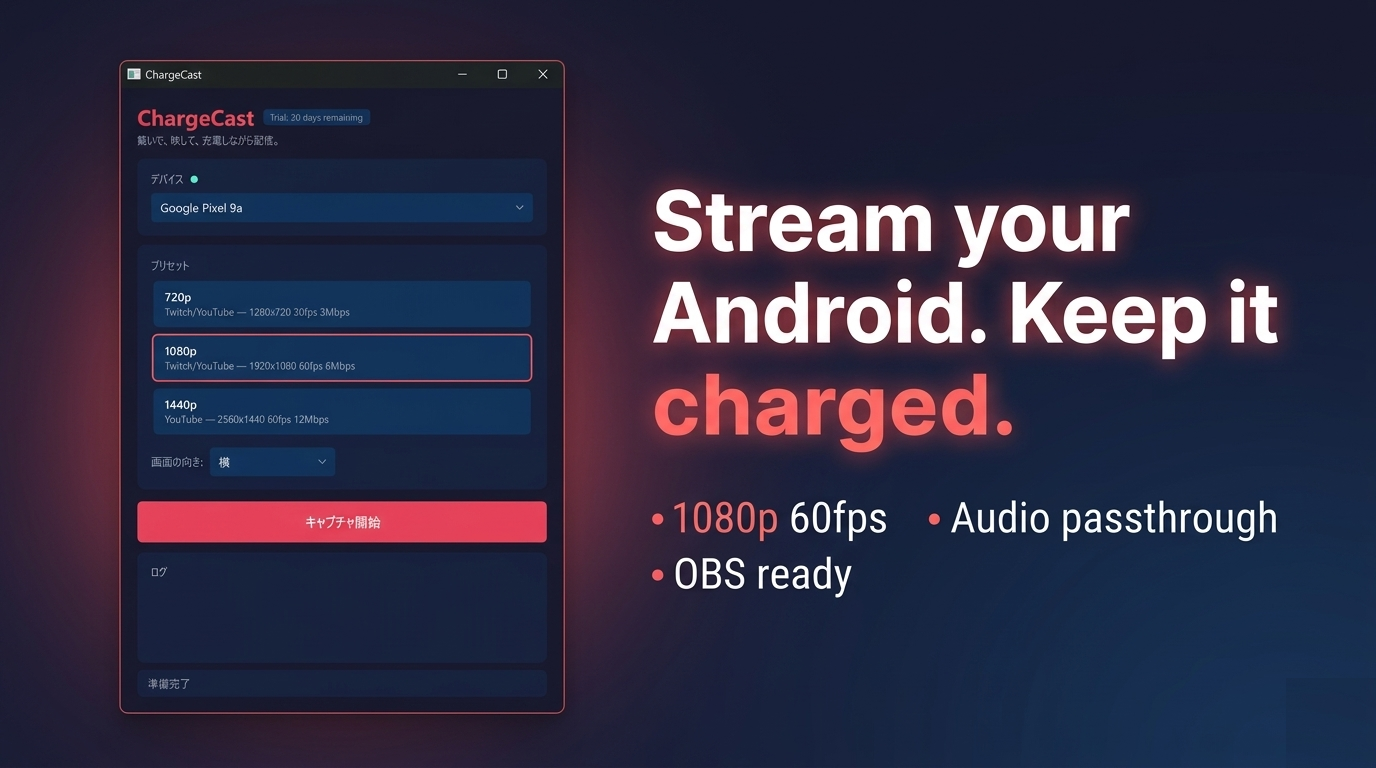
Choose 720p / 1080p / 1440p / Custom with one click. A scrcpy window opens with your Android screen already inside it. Point OBS's Window Capture at it — done.
3Mix with three sliders
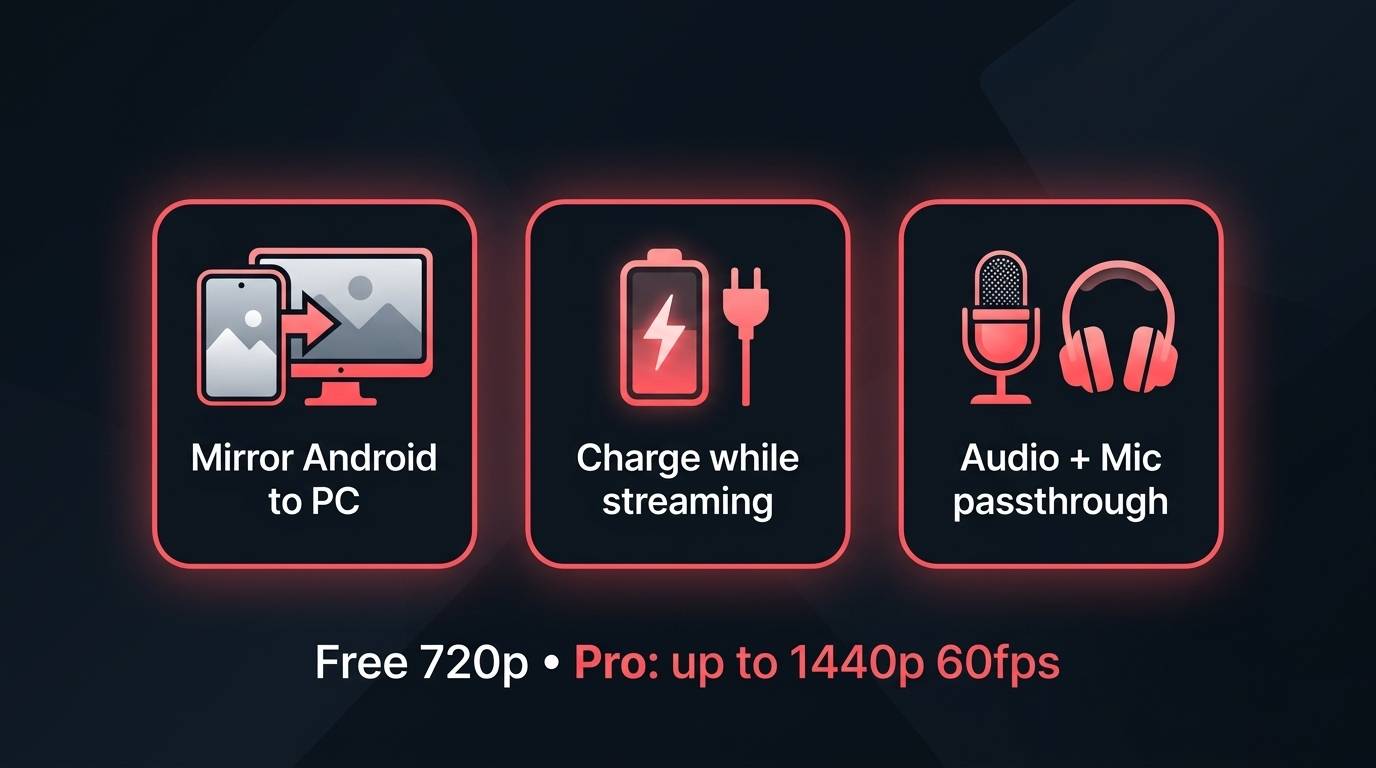
- Device — game audio from your Android phone
- Output — your PC audio (stream BGM, Discord, browser)
- Mic — your own voice
Mix everything inside ChargeCast and hand OBS one clean source. No more fighting the mixer mid-stream.
That's roughly 3 minutes from cold start. After that, just hit "Start Streaming" in OBS.
What it does, at a glance
Your phone in a Windows window, straight over USB
The same cable powers your phone — no thermal throttling, no battery panic
Three-channel mixer for device audio, PC audio, and your mic
720p / 1080p / 1440p 60fps, tuned for Twitch and YouTube
Your OBS scene layout stays intact between sessions
English, 日本語, 中文, 한국어, and more
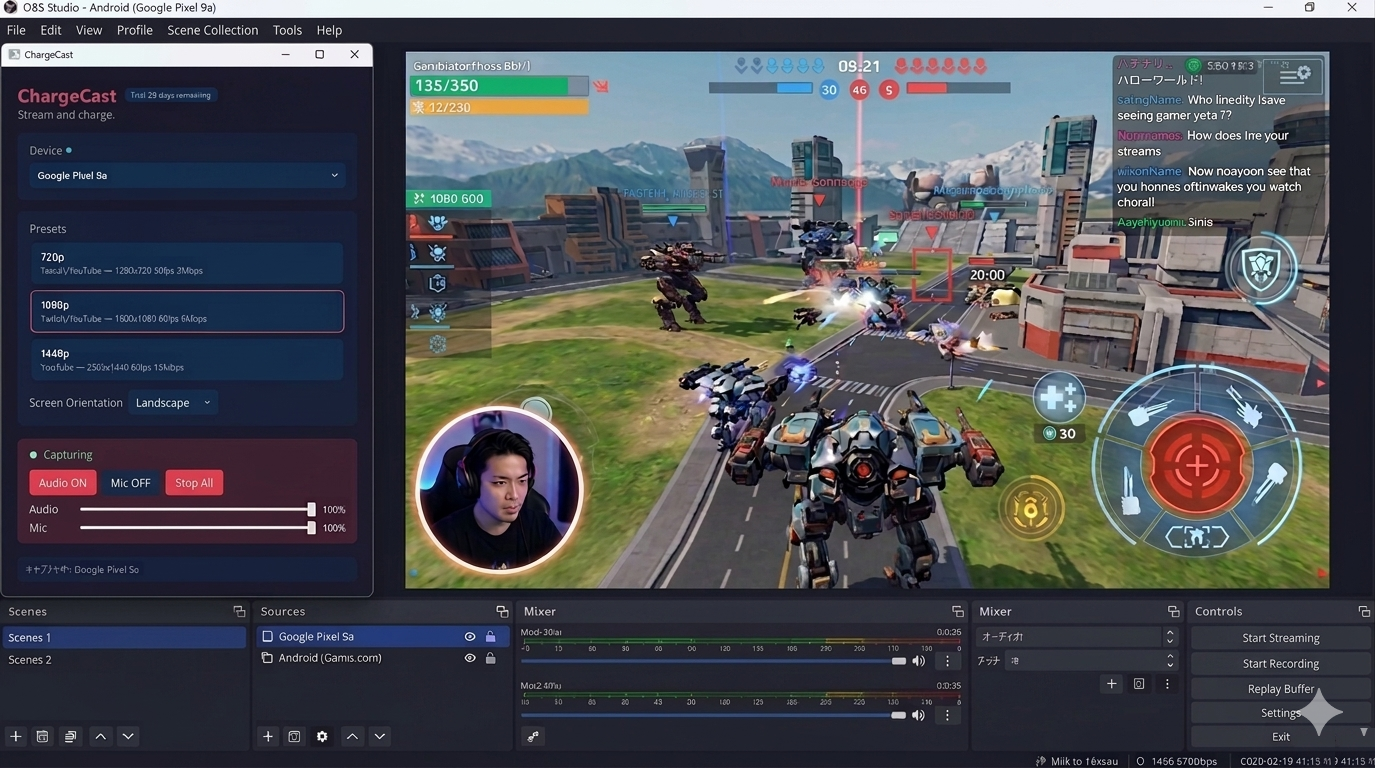
How it looks inside OBS
Pricing
Prices shown in USD as a reference. Microsoft Store converts to your local currency at checkout. All billing and cancellation happen through your Microsoft account.
or download the .exe directly (unsigned, see install notes)
or buy a Lifetime license direct ($14.99)
Who this is for
✅ Great fit
- Streaming Android gameplay, app reviews, or tutorials to OBS
- Anyone who prefers wired stability to Wi-Fi wobble
- Creators who want one app to handle all the audio
- Long-session streamers worried about heat and battery
⏭ Maybe not for you
- Mac or Linux users (this is Windows-only)
- Anyone who wants a 100% free path (plain
scrcpyon the CLI will do) - Anyone who needs wireless Wi-Fi mirroring (ChargeCast is USB-first)
FAQ
Do I need root or a special dev environment?
No. Just turn on "USB debugging" under Android Developer options.
Can I hear game audio and my own voice at the same time?
Yes. Each of the three channels has its own slider.
Which streaming software should I use?
OBS Studio is the reference setup (use a Window Capture source). XSplit and similar tools work the same way.
What about portrait-orientation games?
Orientation can be locked to Portrait, Landscape, or Auto so your OBS layout stays stable.
Does it phone home?
All capture is local via ADB. ChargeCast itself does not send device info anywhere.
How is this different from scrcpy or DroidCam?
ChargeCast bundles scrcpy with a 3-channel audio mixer and a one-click GUI, so game audio and your mic both reach OBS as a single clean source. Plain scrcpy can't always pass game audio (Android 11+ only, with caveats), and DroidCam treats the phone as a webcam rather than a screen mirror. ChargeCast is built around the streamer flow: USB cable, charge, OBS Window Capture.
A note on OBS integration
ChargeCast is not a streaming app on its own. Think of it as the stage that hands a clean take to OBS.
- Point an OBS Studio Window Capture at the ChargeCast window — that's the entire integration
- Video, device audio, and mic are already mixed on ChargeCast's side, so your OBS scene stays minimal
- XSplit, Streamlabs, Discord screen share — anything with a Window Capture source works the same way
Once the OBS scene is set up, the session starts with a single motion: plug in the cable, hit Start Capture.
Changelog
v1.7.2Direct purchase via Lemon Squeezy ($14.99 Lifetime, no Microsoft account required) — License Key panel links straight to checkout.v1.7.1Audio gain slider 101–200% no-op fixv1.7.0Lifetime plan, 0–200% audio gain on Output/Mic sliders, Android 16 device-volume fix, direct .exe download channelv1.6.1Stability releasev1.6.0Custom preset polish, scrcpy window management, switched to Microsoft Store 7-day trialv1.5.0Custom resolution preset, remembered scrcpy window positionv1.4.0Device Volume slider and 3-channel audio mixerv1.3.xand earlier — Initial release, basic mirroring and audio passthrough
Plug in the cable. Go live.
One USB cable, seven free days, every feature unlocked.
▶ Get ChargeCast on Microsoft Store
or buy a Lifetime license direct ($14.99)
Direct .exe install
The direct download is the same ChargeCast you get from the Microsoft Store, packaged as a standalone Inno Setup installer instead of an MSIX. It installs to %LOCALAPPDATA%\Programs\ChargeCast per-user (no admin prompt).
The installer is unsigned, so Windows SmartScreen warns the first time you run it:
- On the blue Windows protected your PC dialog, click More info
- Click Run anyway
To confirm the installer matches the official release, check the SHA256 hash listed on the Releases page:
Get-FileHash -Algorithm SHA256 .\ChargeCast-1.7.1-Setup.exePro features (1080p / 1440p, 60fps, 3-channel audio mixer with mic) are unlocked by an active Microsoft Store license or a Lemon Squeezy Lifetime license.
More from sakuradev